Exoskeleton Teleoperation Data Collection
This page corresponds to the LeRobot data collection workflow for OpenArmX + Qnbot exoskeleton.
🧩 Hardware Checklist
| Device | Quantity | Description |
|---|---|---|
| OpenArmX bimanual robot (follower side) | 1 unit | Execution side, receives teleoperation commands |
| Qnbot exoskeleton | 1 set | Operation side, worn by the operator |
| RealSense D405 | 2 units | Left/right wrist cameras |
| RealSense D435 | 1 unit | Head camera |
| USB 3.0 high-speed hub (>=3 ports) | 1 unit | Ensures camera bandwidth |
| Collection host (industrial PC) | 1 unit | Robot + camera side |
| Gigabit router + gigabit Ethernet cable | 1 each | Dual-host communication (optional for single-host setup) |
If you use a local server for training, you can also receive data directly on that server. You only need both hosts to be on the same Wi-Fi network.
⚠️ Safety Checks Before Collection
- Before starting the bimanual robot, confirm the CAN board is started (blue light solid on; green light usually means not started)
- After startup, the CAN board blue light may blink (data is being transmitted), which is normal
- Gently move the robot arm to confirm motor resistance is present (enable succeeded)
- Keep away from flammable, explosive, and corrosive hazardous materials
- Keep a safe distance from the robot during collection
1. Start Exoskeleton Teleoperation
Start CAN
python3 /home/openarmx/openarmx_ws/src/openarmx_motor_manager/scripts/en_all_can.py
Terminal 1: Start WebSocket teleoperation service
cd ~/openarmx_ws
source install/setup.bash
ros2 launch openarmx_teleop_exo websocket_teleoperator.launch.py
Terminal 2: Connect exoskeleton (Qnbot HMI)
Wear the exoskeleton, push up the switches on both sides of the two handles, then double-click to open the control software:
/home/openarmx/Qnbot HMI Control-1.2.2.AppImage
Operate in the following order:
- Click "Exoskeleton Device"
- Click "Add Exoskeleton Device"
- Click "Create Connection"
- Click the small gear icon, copy and paste
ws://localhost:19091 - Click "Add Forwarding Target"
- Copy and paste
ws://localhost:19091again - Click "Add Configuration"
At this point, you can see data being forwarded in Terminal 1. Note: If the switches on both sides of the handles are not pushed up, warnings will be sent and no data will be sent.
Terminal 3: Start exoskeleton retargeting node
Map exoskeleton data to the OpenArmX robot joint space:
cd ~/openarmx_ws
source install/setup.bash
ros2 launch openarmx_teleop_exo exo_retargeting.launch.py robot_type:=OpenArmX
Terminal 4: Start follower-side robot
💡 First-time recommendation: Start in simulation mode first. Wear the exoskeleton and move your arms, compare whether the initial joint positions in Rviz match the real robot, then switch to real hardware after confirmation.
Simulation mode (for first-time verification):
cd ~/openarmx_ws
source install/setup.bash
ros2 launch openarmx_bringup openarmx.bimanual.launch.py \
    control_mode:=mit \
    robot_controller:=forward_position_controller \
    use_fake_hardware:=true
Real hardware mode:
cd ~/openarmx_ws
source install/setup.bash
ros2 launch openarmx_bringup openarmx.bimanual.launch.py \
    right_can_interface:=can0 \
    left_can_interface:=can1 \
    control_mode:=mit \
    robot_controller:=forward_position_controller
Terminal 5: Start ROS2 bridge control
cd ~/openarmx_ws
source install/setup.bash
ros2 launch openarmx_teleop_exo exoskeleton_bridge.launch.py gripper_scaling_factor:=0.05
2. Data Collection
Terminal 6: Start publishing three cameras
cd ~/openarmx_ws
source install/setup.bash
W=424; H=240; FPS=30
ros2 launch openarmx_lerobot camera_publisher.launch.py \
  width:=$W height:=$H fps:=$FPS \
  cam_left_serial:=左手序列号 cam_left_type:=D405 \
  cam_right_serial:=右手序列号 cam_right_type:=D405 \
  cam_head_serial:=头部序列号 cam_head_type:=D435
Query camera serial numbers (output is ordered as left, center, right; use the
Serial Numberfield, do not useAsic Serial Number):
| D405 | D435 |
|---|---|
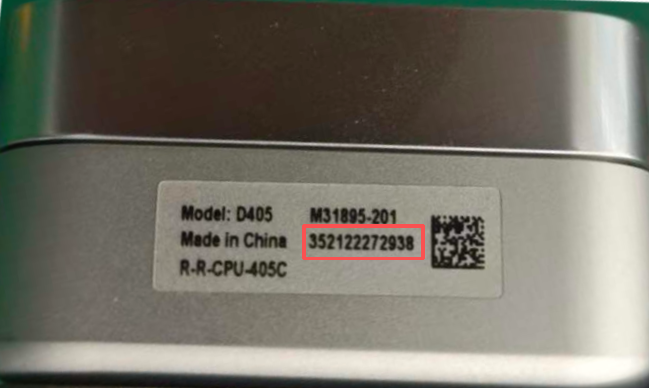 |
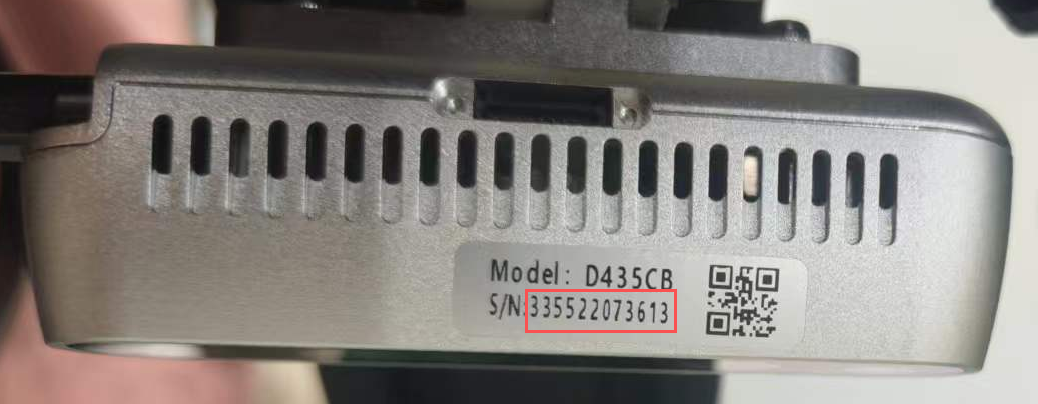 |
rs-enumerate-devices | grep "Serial Number"
Note:
width/height/fpsmust be exactly the same as the later LeRobot collection command.
Check camera feeds (optional)
Open another terminal, verify the three image streams are normal, then close it:
rqt
Plugins -> Visualization -> Image View -> Add three camera topics
Terminal 7: Start LeRobot collection
Enter the LeRobot environment first, then run the recording command:
W/H/FPSconfigures camera resolution and frame rate during collection (for example,W=640; H=480; FPS=30).W/H/FPShere must be exactly the same aswidth/height/fpsincamera_publisher.launch.py.- After changing W/H/FPS in the camera publisher node, also change W/H/FPS in the data collection command to match; otherwise, camera format mismatch will cause errors.
🚨 Key constraint:
collection W/H/FPS=camera publish width/height/fps. Default save path:~/.cache/huggingface/lerobot/localIf batch collection fails, delete the folder with the same name under
localand rerun collection. If you do not delete it, an error will occur and collection will fail.
General template:
lerobot-env  # Enter lerobot environment
W=424; H=240; FPS=15
HF_HUB_OFFLINE=1 lerobot-record \
  --robot.type=openarmx_follower_ros2 \
  --robot.cameras="{cam_left: {type: ros2, image_topic: /cam_left/color/image, depth_topic: /cam_left/depth/image, use_depth: true, width: $W, height: $H, fps: $FPS}, cam_right: {type: ros2, image_topic: /cam_right/color/image, depth_topic: /cam_right/depth/image, use_depth: true, width: $W, height: $H, fps: $FPS}, cam_head: {type: ros2, image_topic: /cam_head/color/image, depth_topic: /cam_head/depth/image, use_depth: true, width: $W, height: $H, fps: $FPS}}" \
  --teleop.type=openarmx_leader_ros2 \
  --dataset.repo_id=local/你的数据名称 \
  --dataset.single_task="你执行的任务描述" \
  --dataset.num_episodes=采集的总组数 \
  --dataset.episode_time_s=每组时长秒数 \
  --dataset.reset_time_s=组间重置时长秒数 \
  --dataset.push_to_hub=false \
  --display_data=true
Example:
lerobot-env
W=424; H=240; FPS=15
HF_HUB_OFFLINE=1 lerobot-record \
  --robot.type=openarmx_follower_ros2 \
  --robot.cameras="{cam_left: {type: ros2, image_topic: /cam_left/color/image, depth_topic: /cam_left/depth/image, use_depth: true, width: $W, height: $H, fps: $FPS}, cam_right: {type: ros2, image_topic: /cam_right/color/image, depth_topic: /cam_right/depth/image, use_depth: true, width: $W, height: $H, fps: $FPS}, cam_head: {type: ros2, image_topic: /cam_head/color/image, depth_topic: /cam_head/depth/image, use_depth: true, width: $W, height: $H, fps: $FPS}}" \
  --teleop.type=openarmx_leader_ros2 \
  --dataset.repo_id=local/wgg_100 \
  --dataset.single_task="up_box" \
  --dataset.num_episodes=100 \
  --dataset.episode_time_s=60 \
  --dataset.reset_time_s=6 \
  --dataset.push_to_hub=false \
  --display_data=true
⌨️ Collection Shortcuts
| Key | Action |
|---|---|
→ Right Arrow |
End and save current episode |
← Left Arrow |
Discard current episode and re-record |
Esc |
Stop recording and exit |
Note: The example shows a 60-second single-episode duration. If you complete the task within 60 seconds, press → Right Arrow to save data; if you do not press it, data is auto-saved after 60 seconds. If collection is wrong, you can press ← Left Arrow to discard the current wrong data, but you must discard before 60 seconds; otherwise, wrong data will be auto-saved. Also, collection cannot be paused during the collection stage. If the dataset is large, alternating operators is recommended.
🔍 Common Parameter Descriptions
| Parameter | Description |
|---|---|
--dataset.repo_id |
Dataset name, e.g. local/wgg_100 |
--dataset.single_task |
Task description text |
--dataset.num_episodes |
Total number of episodes |
--dataset.episode_time_s |
Max duration per episode (seconds) |
--dataset.reset_time_s |
Scene reset duration between episodes (seconds) |
--display_data |
Whether to enable visualization/debug display |
--dataset.root |
Custom dataset save directory |
--dataset.vcodec |
Video codec, options: h264, hevc, libsvtav1 |
📷 Camera Parameter Reference
Available Resolution / Frame Rate Combinations
Intel RealSense D405
| Resolution | Supported FPS |
|---|---|
| 1280 × 720 | 5, 15, 30 |
| 848 × 480 | 5, 15, 30, 60, 90 |
| 640 × 480 | 5, 15, 30, 60, 90 |
| 640 × 360 | 5, 15, 30, 60, 90 |
| 480 × 270 | 5, 15, 30, 60, 90 |
| 424 × 240 | 5, 15, 30, 60, 90 |
Intel RealSense D435 / D435i
| Resolution | Supported FPS |
|---|---|
| 1920 × 1080 | 6, 15, 30 |
| 1280 × 720 | 6, 15, 30 |
| 848 × 480 | 6, 15, 30, 60, 90 |
| 640 × 480 | 6, 15, 30, 60, 90 |
| 640 × 360 | 6, 15, 30, 60, 90 |
| 480 × 270 | 6, 15, 30, 60, 90 |
| 424 × 240 | 6, 15, 30, 60, 90 |
With the standard industrial PC + standard expansion hub, the stable upper limit for three cameras is
640×480 @ 30fps. The default recommendation is424×240 @ 15fpsfor lower bandwidth usage and better stability.
Color Parameter Adjustment
You can append the following parameters when launching camera_publisher.launch.py (* replaced with cam_left / cam_right / cam_head):
| Parameter | Description | Range / Values |
|---|---|---|
cam_*_color_auto_exposure |
Auto exposure | true / false / unset |
cam_*_color_exposure |
Manual exposure | 1..10000 |
cam_*_color_gain |
Manual gain | 0..128 |
cam_*_color_auto_white_balance |
Auto white balance | true / false / unset |
cam_*_color_white_balance |
Manual white balance | 2800..6500 |
cam_*_color_brightness |
Brightness | -64..64 |
cam_*_color_contrast |
Contrast | 0..100 |
cam_*_color_saturation |
Saturation | 0..100 |
cam_*_color_sharpness |
Sharpness | 0..100 |
If only
cam_*_color_exposureorcam_*_color_gainis provided, launch will automatically addcam_*_color_auto_exposure:=false; if onlycam_*_color_white_balanceis provided, it will automatically addcam_*_color_auto_white_balance:=false.
🧠 Practical Recommendations
- First validate the full pipeline with a small batch (10-20 episodes), then run long-duration collection
- Camera
width/height/fpsmust be exactly consistent across collection, training, and inference - Keep camera exposure and camera placement consistent to reduce training distribution drift
- Create a separate
repo_idfor each task to simplify later training and reproduction