外骨骼遥操数据采集
本页对应 OpenArmX + Qnbot 外骨骼的 LeRobot 数据采集流程。
🧩 硬件清单
| 设备 | 数量 | 说明 |
|---|---|---|
| OpenArmX 双臂机器人(从动端) | 1 台 | 执行端,接收遥操指令 |
| Qnbot 外骨骼 | 1 套 | 操作端,操作者穿戴 |
| RealSense D405 | 2 个 | 左右手腕相机 |
| RealSense D435 | 1 个 | 头部相机 |
| USB 3.0 高速拓展坞(≥3 口) | 1 个 | 保证相机带宽 |
| 采集主机(工控机) | 1 台 | 机器人 + 相机端 |
| 千兆路由器 + 千兆网线 | 各 1 | 双机通信(单机方案可省略) |
如果采用本地服务器进行训练的话,也可以在本地服务器直接接收数据,只需要两台主机在同一 wifi 下。
⚠️ 采集前安全检查
- 启动双臂前,确认 CAN 板已启动(蓝灯常亮,未启动常为绿灯)
- 启动后 CAN 板可能蓝灯闪烁(正在传输数据),属正常现象
- 轻晃机械臂,确认电机有阻力(使能成功)
- 远离易燃、易爆、腐蚀性危险物品
- 采集过程中与机器人保持安全距离
1. 启动外骨骼遥操
启动 CAN
python3 /home/openarmx/openarmx_ws/src/openarmx_motor_manager/scripts/en_all_can.py
终端 1:启动 WebSocket 遥操作服务
cd ~/openarmx_ws
source install/setup.bash
ros2 launch openarmx_teleop_exo websocket_teleoperator.launch.py
终端 2:连接外骨骼(Qnbot HMI)
穿戴好外骨骼,两个手柄侧面的开关推上去,然后双击打开控制软件:
/home/openarmx/Qnbot HMI Control-1.2.2.AppImage
按以下顺序操作:
- 点击「外骨骼设备」
- 点击「添加外骨骼设备」
- 点击「创建连接」
- 点击小齿轮,复制粘贴
ws://localhost:19091 - 点击「添加转发目标」
- 再次复制粘贴
ws://localhost:19091 - 点击「添加配置」
此时在 终端 1 中可以看到正在转发数据。 注意:如果手柄两侧的开关没有推上去,则会发送警告,并不发送数据!
终端 3:启动外骨骼重定向节点
将外骨骼数据映射到 OpenArmX 机器人关节空间:
cd ~/openarmx_ws
source install/setup.bash
ros2 launch openarmx_teleop_exo exo_retargeting.launch.py robot_type:=OpenArmX
终端 4:启动从动端机器人
💡 首次使用建议:先用仿真模式启动,穿戴外骨骼活动手臂,对比 Rviz 中初始关节位置与真机是否一致,确认无误后再切换为真机。
仿真模式(首次验证用):
cd ~/openarmx_ws
source install/setup.bash
ros2 launch openarmx_bringup openarmx.bimanual.launch.py \
    control_mode:=mit \
    robot_controller:=forward_position_controller \
    use_fake_hardware:=true
真机模式:
cd ~/openarmx_ws
source install/setup.bash
ros2 launch openarmx_bringup openarmx.bimanual.launch.py \
    right_can_interface:=can0 \
    left_can_interface:=can1 \
    control_mode:=mit \
    robot_controller:=forward_position_controller
终端 5:启动 ROS2 桥接控制
cd ~/openarmx_ws
source install/setup.bash
ros2 launch openarmx_teleop_exo exoskeleton_bridge.launch.py gripper_scaling_factor:=0.05
2. 数据采集
终端 6:启动三相机发布
cd ~/openarmx_ws
source install/setup.bash
W=424; H=240; FPS=30
ros2 launch openarmx_lerobot camera_publisher.launch.py \
  width:=$W height:=$H fps:=$FPS \
  cam_left_serial:=左手序列号 cam_left_type:=D405 \
  cam_right_serial:=右手序列号 cam_right_type:=D405 \
  cam_head_serial:=头部序列号 cam_head_type:=D435
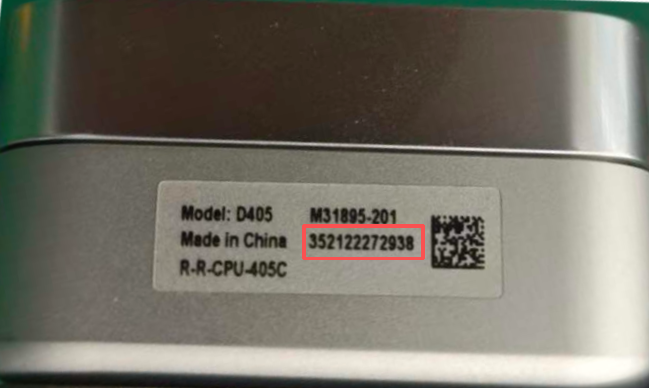
查询相机序列号(输出按左、中、右顺序排列,使用
Serial Number字段,不要用Asic Serial Number):
| D405 | D435 |
|---|---|
 |
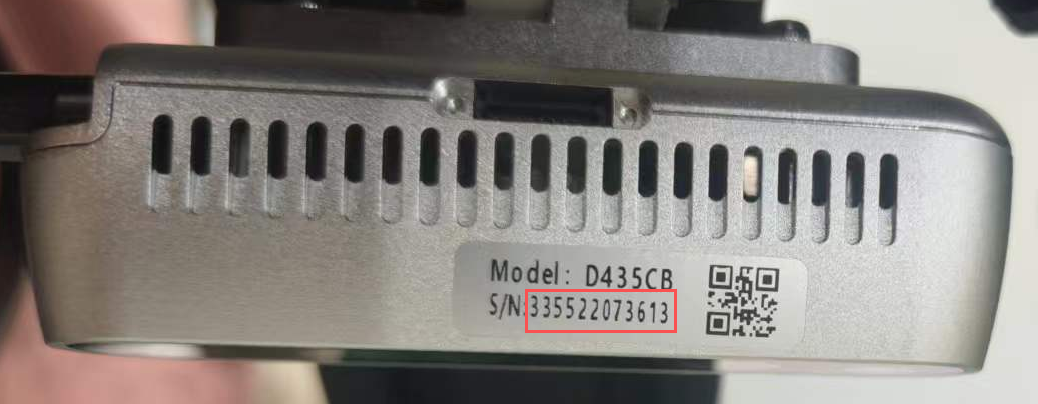 |
rs-enumerate-devices | grep "Serial Number"
注意:
width/height/fps须与后续 LeRobot 采集命令完全一致。
检查相机画面(可选)
另开终端确认三路图像正常后关闭:
rqt
Plugins -> Visualization -> Image View -> 添加三路相机话题
终端 7:启动 LeRobot 采集
先进入 LeRobot 环境,再执行录制命令:
W/H/FPS用于配置采集时的相机分辨率与帧率(例如W=640; H=480; FPS=30)。- 这里的
W/H/FPS必须与相机发布节点camera_publisher.launch.py的width/height/fps完全一致。 - 修改相机发布节点的 W/H/FPS 后,请同步将数据采集命令中的 W/H/FPS 改为一致;否则相机格式不匹配会导致报错。
🚨 关键约束:
采集 W/H/FPS=相机发布 width/height/fps。 默认保存路径:~/.cache/huggingface/lerobot/local如整批采集出现问题,删除
local目录下同名文件夹后重新运行采集。如不删除则会报错,采集失败!
通用模板:
lerobot-env  # 进入 lerobot 环境
W=424; H=240; FPS=15
HF_HUB_OFFLINE=1 lerobot-record \
  --robot.type=openarmx_follower_ros2 \
  --robot.cameras="{cam_left: {type: ros2, image_topic: /cam_left/color/image, depth_topic: /cam_left/depth/image, use_depth: true, width: $W, height: $H, fps: $FPS}, cam_right: {type: ros2, image_topic: /cam_right/color/image, depth_topic: /cam_right/depth/image, use_depth: true, width: $W, height: $H, fps: $FPS}, cam_head: {type: ros2, image_topic: /cam_head/color/image, depth_topic: /cam_head/depth/image, use_depth: true, width: $W, height: $H, fps: $FPS}}" \
  --teleop.type=openarmx_leader_ros2 \
  --dataset.repo_id=local/你的数据名称 \
  --dataset.single_task="你执行的任务描述" \
  --dataset.num_episodes=采集的总组数 \
  --dataset.episode_time_s=每组时长秒数 \
  --dataset.reset_time_s=组间重置时长秒数 \
  --dataset.push_to_hub=false \
  --display_data=true
示例:
lerobot-env
W=424; H=240; FPS=15
HF_HUB_OFFLINE=1 lerobot-record \
  --robot.type=openarmx_follower_ros2 \
  --robot.cameras="{cam_left: {type: ros2, image_topic: /cam_left/color/image, depth_topic: /cam_left/depth/image, use_depth: true, width: $W, height: $H, fps: $FPS}, cam_right: {type: ros2, image_topic: /cam_right/color/image, depth_topic: /cam_right/depth/image, use_depth: true, width: $W, height: $H, fps: $FPS}, cam_head: {type: ros2, image_topic: /cam_head/color/image, depth_topic: /cam_head/depth/image, use_depth: true, width: $W, height: $H, fps: $FPS}}" \
  --teleop.type=openarmx_leader_ros2 \
  --dataset.repo_id=local/wgg_100 \
  --dataset.single_task="up_box" \
  --dataset.num_episodes=100 \
  --dataset.episode_time_s=60 \
  --dataset.reset_time_s=6 \
  --dataset.push_to_hub=false \
  --display_data=true
⌨️ 采集快捷键
| 按键 | 操作 |
|---|---|
→ 右方向键 |
结束并保存当前 episode |
← 左方向键 |
丢弃当前 episode,重新录制 |
Esc |
停止录制并退出 |
注意:示例中展示的单个数据采集时长是60秒,在60内完成采集任务可按 → 右方向键保存数据,如没有按则等到60秒后自动保存。如数据采集错误可按 ← 左方向键丢弃当前的错误数据,但一定要在 60 秒之前丢弃数据否则错误数据将会自动保存。而且数据采集阶段是不能停止的!如数据量比较大,建议多人交替采集!
🔍 常用参数说明
| 参数 | 说明 |
|---|---|
--dataset.repo_id |
数据集名称,如 local/wgg_100 |
--dataset.single_task |
任务描述文字 |
--dataset.num_episodes |
总回合数 |
--dataset.episode_time_s |
每回合最大时长(秒) |
--dataset.reset_time_s |
每回合间重置场景时长(秒) |
--display_data |
是否开启可视化调试 |
--dataset.root |
自定义数据保存目录 |
--dataset.vcodec |
视频编码器,可选 h264、hevc、libsvtav1 |
📷 相机参数参考
可用分辨率 / 帧率组合
Intel RealSense D405
| 分辨率 | 支持帧率 |
|---|---|
| 1280 × 720 | 5, 15, 30 |
| 848 × 480 | 5, 15, 30, 60, 90 |
| 640 × 480 | 5, 15, 30, 60, 90 |
| 640 × 360 | 5, 15, 30, 60, 90 |
| 480 × 270 | 5, 15, 30, 60, 90 |
| 424 × 240 | 5, 15, 30, 60, 90 |
Intel RealSense D435 / D435i
| 分辨率 | 支持帧率 |
|---|---|
| 1920 × 1080 | 6, 15, 30 |
| 1280 × 720 | 6, 15, 30 |
| 848 × 480 | 6, 15, 30, 60, 90 |
| 640 × 480 | 6, 15, 30, 60, 90 |
| 640 × 360 | 6, 15, 30, 60, 90 |
| 480 × 270 | 6, 15, 30, 60, 90 |
| 424 × 240 | 6, 15, 30, 60, 90 |
标配工控机 + 标配拓展坞下,三相机稳定上限为
640×480 @ 30fps。默认推荐424×240 @ 15fps,带宽占用更低更稳定。
颜色参数调节
在 camera_publisher.launch.py 启动时可附加以下参数(* 替换为 cam_left / cam_right / cam_head):
| 参数 | 说明 | 范围 / 取值 |
|---|---|---|
cam_*_color_auto_exposure |
自动曝光 | true / false / unset |
cam_*_color_exposure |
手动曝光 | 1..10000 |
cam_*_color_gain |
手动增益 | 0..128 |
cam_*_color_auto_white_balance |
自动白平衡 | true / false / unset |
cam_*_color_white_balance |
手动白平衡 | 2800..6500 |
cam_*_color_brightness |
亮度 | -64..64 |
cam_*_color_contrast |
对比度 | 0..100 |
cam_*_color_saturation |
饱和度 | 0..100 |
cam_*_color_sharpness |
锐度 | 0..100 |
只写
cam_*_color_exposure或cam_*_color_gain时,launch 会自动补cam_*_color_auto_exposure:=false;只写cam_*_color_white_balance时自动补cam_*_color_auto_white_balance:=false。
🧠 经验建议
- 先小批量(10~20 组)验证整体链路,再进行长时采集
- 相机
width/height/fps在采集、训练、推理三阶段必须完全一致 - 保持相机曝光和机位一致,减少训练分布漂移
- 每个任务单独建
repo_id,便于后续训练与复现